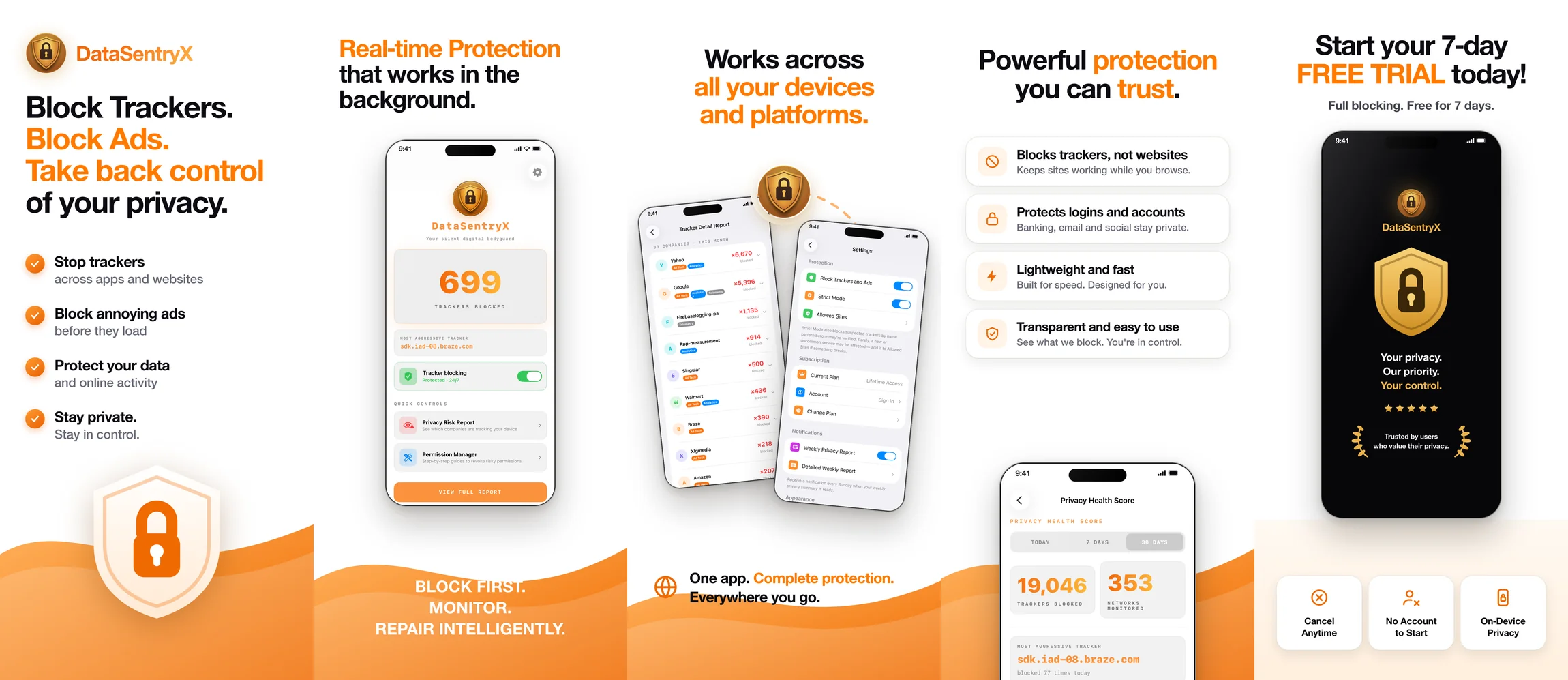
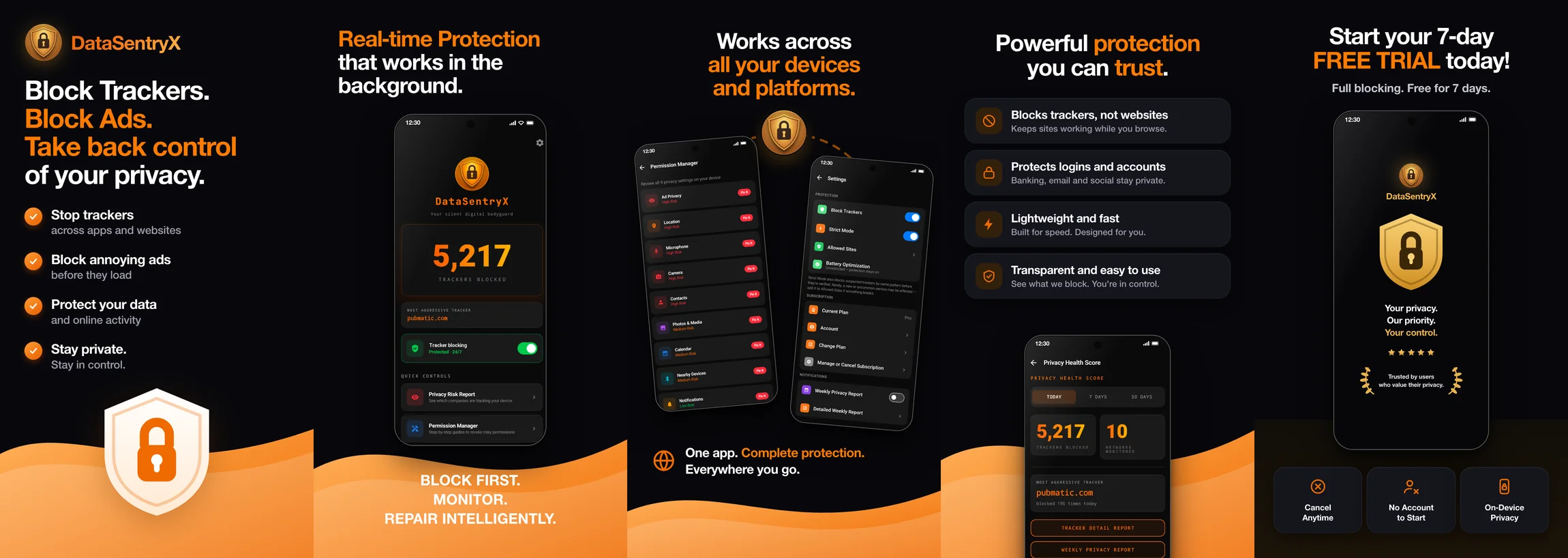
Free on every platform. Install it, turn it on, and browse normally.
Available for iPhone, Android, Chrome, Edge, and Firefox.
One account protects every device you own.
Three steps — no technical skills needed.
Get DataSentryX from your device's official store above — the App Store, Google Play, or your browser's extension store. Installing the browser extension? See the step-by-step guide below.
Open it and follow the quick setup. The Free plan starts working right away — no account or card required.
If you purchased Pro, Family, Business, or Lifetime on this website, open the app and Sign In with your DataSentryX account — your plan activates automatically, with nothing to buy again. If you purchased through the App Store or Google Play, use Restore Purchases while signed in to the same store account.
Questions about installing or activating? See the FAQ or contact us.
Takes about 30 seconds — here's exactly what to expect.
On the store page, click "Add to Chrome" (or "Get" in Edge, "Add to Firefox" in Firefox). Your browser will ask you to confirm — click Add extension. That's the install done.
New extensions start out hidden behind the puzzle-piece icon next to your address bar. Click the puzzle piece, find DataSentryX, and pin it so it's always one click away:
Protection runs either way — pinning just keeps the icon visible so you can see it working.
The DataSentryX icon shows what's happening on the page you're viewing. Have a Pro, Family, Business, or Lifetime plan? Click the icon and Sign In with your DataSentryX account to activate it.